Game lag: how to prove the connection wobbled.
Lag mid-match is a story nobody confirms. Recorded latency, lost responses and a window of minutes around the exact moment are evidence you can attach.
The game shows the symptom, not the cause
The game shows teleporting and unregistered shots. It does not show whether the router answered that second, whether two external targets failed together, or whether the adapter dropped and came back. That is what decides between Wi-Fi and the link.
1. Keep the recorder running during the match
It pings the router every second and three external destinations every three seconds while the PC is on. If you can, play over a cable for the first few days to take Wi-Fi out of the picture.
2. Mark it without leaving the match
One shortcut (Ctrl+Alt+L) saves the lag right away, without opening a window, and its notification doesn't take focus from a full-screen game. Capture continues for two more minutes to catch the recovery, and you say what happened after the match, from the notification or the tray menu.
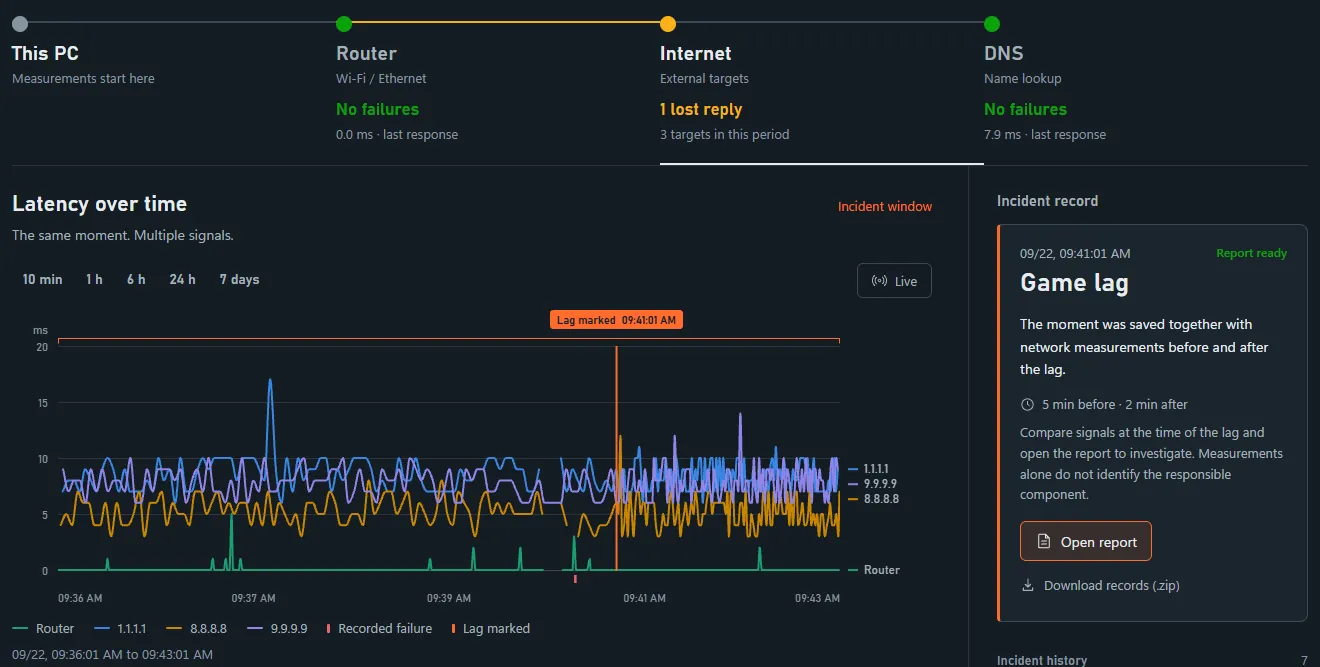
3. Read what failed together
The report shows latency and loss for each destination before, during and after the mark, the jitter, and whether the router answered in the same interval. At the moment of the mark, the app also traces the path to 1.1.1.1, hop by hop, and notes how long each hop took to answer.
The trace shows where replies were slow at that instant, which helps when you talk to support. A hop that doesn't answer may just be filtering ping, and a single trace doesn't prove where the problem happened.
4. Change one factor at a time
Change one thing, record again and compare with the previous record, such as a cable instead of Wi-Fi or another time to play. The report suggests the first test: at the next incident, compare the PC with a second device on the same network, off mobile data, and note the times of the problem on both. When the lag was detected automatically, it suggests following the second device with a continuous ping. If both have the problem at the same times, the likely cause is shared, such as the router or the ISP.
The lag you didn't mark
While the connection stays up, the app saves a latency spike, a burst of lost pings or high jitter on its own, and the report says which rule fired, with the measured numbers. If the PC itself was downloading or uploading a lot at that moment, as during a game update, the report says that traffic can explain the lag.
At medium sensitivity, the default, a spike counts when ping reaches 4 times its usual and 200 ms or more, 3 times in a row. Loss counts when 40% of pings are lost within 10 seconds, with at least 3 lost, and jitter when it averages 50 ms over 30 seconds. The problem has to reach at least two destinations. In Settings you can pick low, medium or high sensitivity, or turn detection off. There are at most 5 automatic lag incidents a day, 15 minutes apart.
When the connection is full
If the lag shows up when someone at home starts a download or a video call, the culprit may be queueing in the network equipment, which makes ping rise when the connection is full. The report compares latency with this PC's traffic high and low, but it only measures this PC's traffic: other devices can fill the connection without showing up.
The automatic speed test measures ping with the connection full. Automatic speed test: how much of your plan actually arrives.
The game server is left out
The app measures the path to the router and to three public internet destinations, not to the game server. If all of that was stable and only the game froze, the records show no failure on your connection at that moment, and the problem may be the server or the route to it.
If the router wobbles along with the internet, start with the local path. Wi-Fi or internet: how to tell which one fails.
Free 7-day trial. Then US$14.99 one-time, no subscription.
Back to the website