Twitch buffering: is it you or Twitch?
The player buffers and the question shows up instantly: is it me, Twitch or my ISP? Without records you can argue. With records you can compare.
The three cases leave different traces
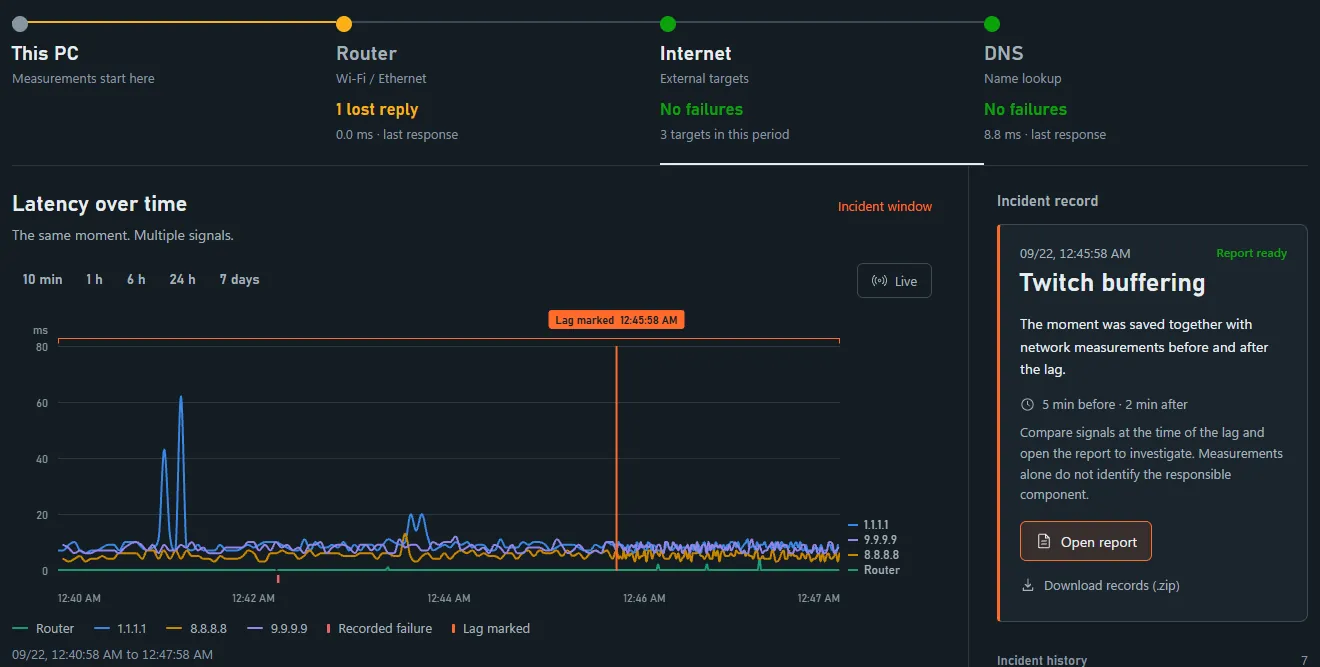
Router steady while external targets fail in the same window: the failure is beyond your PC. Everything wobbling together, router included: the local path becomes a suspect. Network steady with only the player buffering: the problem may be on the video path.
If the PC itself was downloading or uploading a lot during a spike, the report says that traffic can explain the buffering, before you blame Twitch or your ISP.
1. Leave the recorder running
It measures the router, three external destinations, DNS lookups and HTTPS checks while the PC is on. The DNS lookups ask for the address of www.twitch.tv, through the system resolver and directly through 1.1.1.1. There's nothing to open before the stream.
2. Connect the extension to see the player's side
The optional extension for Chrome, Edge and Firefox checks the Twitch player every two seconds: whether it's playing or waiting, how many seconds of video are buffered and how many frames were dropped. It also notes how long each media request took and whether it failed. To connect it, copy the connection code from the dashboard and paste it into the extension. After the free trial, connecting the extension requires the license.
3. Press Ctrl+Alt+L when it buffers
The lag is saved right away, with the 5 minutes before and the 2 after, without opening a window. Then, from the notification, choose Twitch buffering and, if you like, enter when the problem started and ended. Without that period, the analysis looks at the 15 seconds on either side of the mark.
4. Read the report
The report says whether the router and the external destinations answered at the moment of the buffering. With the extension, it also shows the lowest video buffer, the dropped frames, the media requests that took 3 seconds or more or failed, and whether playback resumed after each wait.
What is not measured
We do not collect Twitch private bytes or player internals. Pauses, seeks and observations without a safe tab association are reported separately, so symptoms never mix with measurements.
Of each request, the extension keeps only the host and the type (playlist, segment or media), never the full address. It can't tell ads from the stream, because both go through the same player, and it only works on Twitch.
The next test
The report for a Twitch buffering incident suggests comparing the same stream, at a fixed video quality, on this PC and on a second device on the same network during the next incident. If both buffer at the same times, the likely cause is shared: the router, the ISP or the stream itself. If only the PC buffers, look at the PC and its session. Different servers and buffers can still explain differences, so neither result names the culprit on its own.
If both sides wobble together, the next step is separating Wi-Fi from the link. Wi-Fi or internet: how to tell which one fails.
With the records in hand, the next step is the support ticket. How to file an ISP complaint with evidence.
Free 7-day trial. Then US$14.99 one-time, no subscription.
Back to the website