Wi-Fi or internet: how to tell which one fails.
When everything freezes, the internet always looks guilty. But half the path is inside your home. You can separate the two without extra tools.
The path has two stretches
Between your PC and any website there are two stretches. The first runs from the PC to the router, over Wi-Fi or a cable, inside your home. The second leaves the router for your ISP's line and the rest of the internet. A stuttering game or a page that won't load looks the same on screen whichever stretch failed.
1. Measure both stretches at once
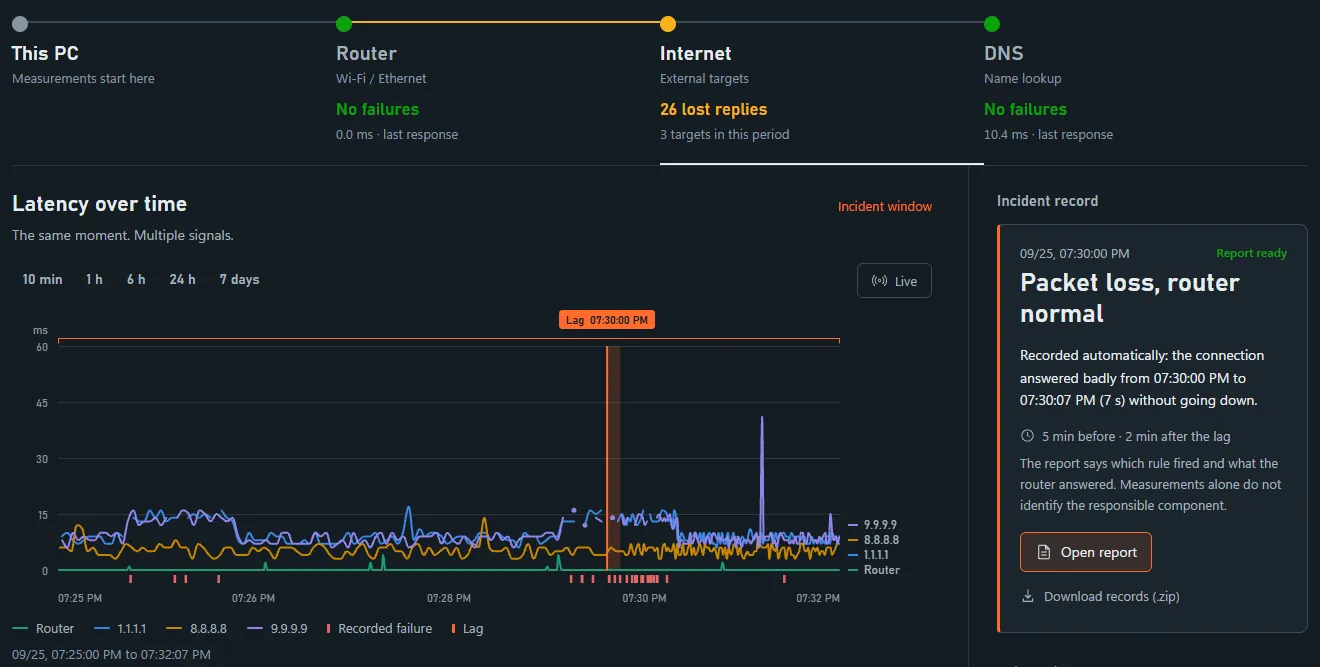
The recorder pings the router every second and three external destinations (1.1.1.1, 8.8.8.8 and 9.9.9.9) every three seconds, on the same timeline. When you mark a lag, it pings all of them every second for up to two minutes.
2. Compare them at the moment of the failure
In the incident report, look for what failed in the same interval:
| In the report | Where it points |
|---|---|
| The router answered every probe, and the external destinations failed together | The stretch to the router was working, so suspicion moves past it: modem, ISP or external routes. |
| The router lost probes too | The stretch inside your home is a suspect: Wi-Fi, cable, network adapter or the router itself. |
| Wi-Fi shows as disconnected in the incident window | The PC lost its wireless link to the router. Before calling your ISP, look at the distance and the walls between the PC and the router. |
| No ping failed, but the game or website froze | Both stretches were answering. The problem may be the service, DNS or the PC itself. |
This is a first reading: the report itself says this data does not identify the responsible component.
3. Check the Wi-Fi signal
On Wi-Fi, the app notes the signal in dBm, the network, the access point and radio disconnects every five seconds. The incident report shows the signal range in the window, the median, the range around the moment of the problem and how many times the PC switched access points.
Signal in dBm is negative, and the closer to zero, the stronger. Around -50 dBm the signal is strong; around -70 dBm or lower, slowdowns and drops become more common. The app shows the numbers without rating the signal. In homes with a repeater or mesh network, also look for access point switches in the middle of the incident, because each switch can cause a short pause.
For speed tests, the app also notes whether the PC was on Wi-Fi or a cable. Automatic speed test: how much of your plan actually arrives.
4. Confirm over a cable
If the clues point at Wi-Fi, connect the PC by cable straight to the router and record for a few days without changing anything else. If the failures go away, the wireless stretch becomes the main suspect. If they continue with the router answering, suspicion moves past the router. Change one thing at a time, or you won't know which change fixed it.
The adapter clue
Disconnects and address changes appear as their own events. If the failure coincides with the adapter dropping and returning, the signal points at the local link — information that completely changes the support ticket.
What the data doesn't show
The measurements describe what this PC saw and don't cover the other devices in your home. To tell whether the failure affects the whole home, the report suggests comparing this PC with a second device on the same network, off mobile data, at the next incident. If both fail at the same times, the likely cause is shared, such as the router or the ISP. If only the PC fails, look at the PC and its link to the router.
After the diagnosis
If the test points at the local path, the report still works: it records what was happening while you changed channel, cable or router, to confirm whether the change fixed it.
If the failure only shows on external targets, it is time to complain with records. How to file an ISP complaint with evidence.
Free 7-day trial. Then US$14.99 one-time, no subscription.
Back to the website